
Connect your tools and try a task
Finish this guide with a task done in your own Notion workspace, such as turning notes into a to-do list. The current beta needs your own AI provider account and API key. Connect only what you need for your first task.
01
Create your space
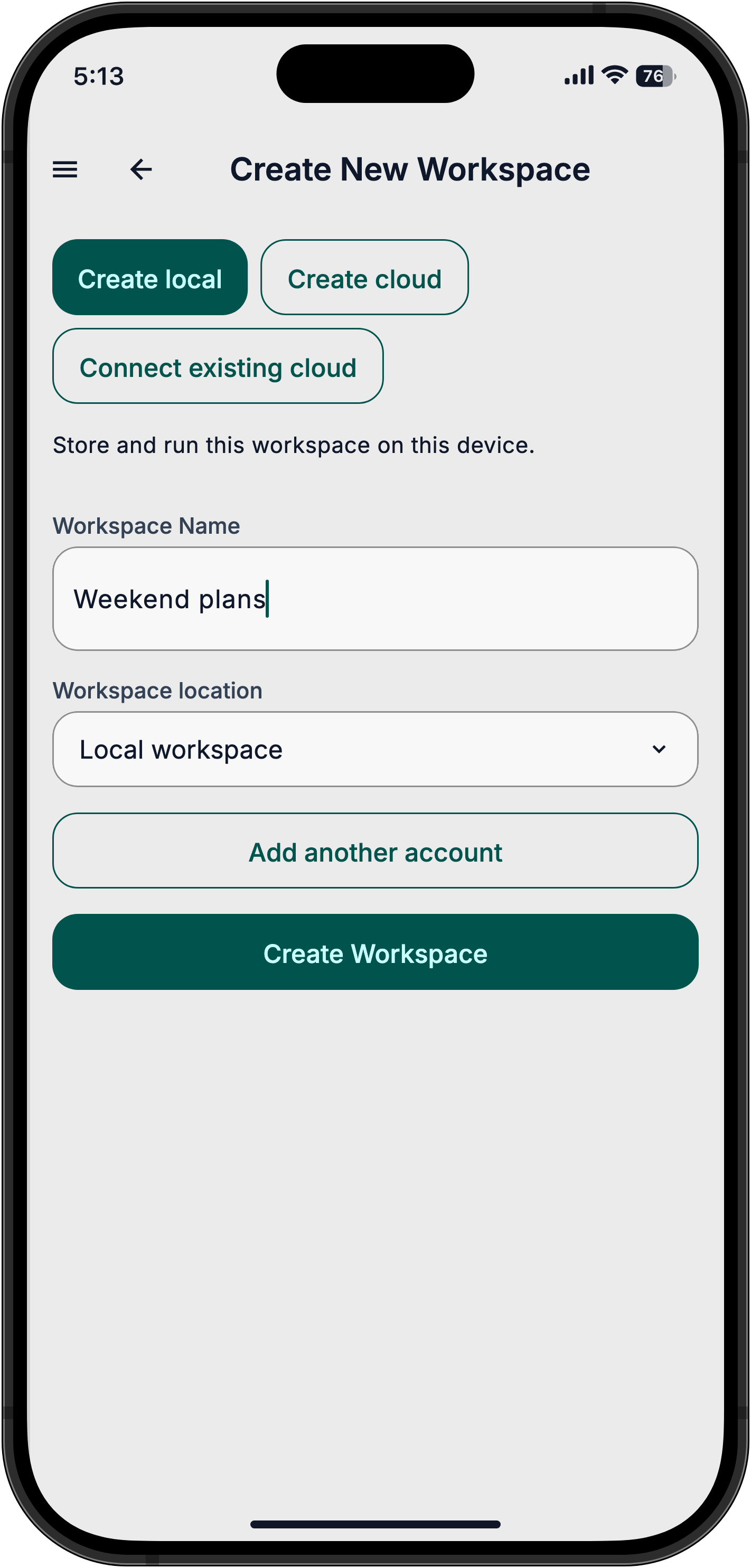
Open AuraVibes and choose Create local workspace. Your space keeps its chats and tools on this device; AuraVibes works while the app is open.
02
Connect your AI
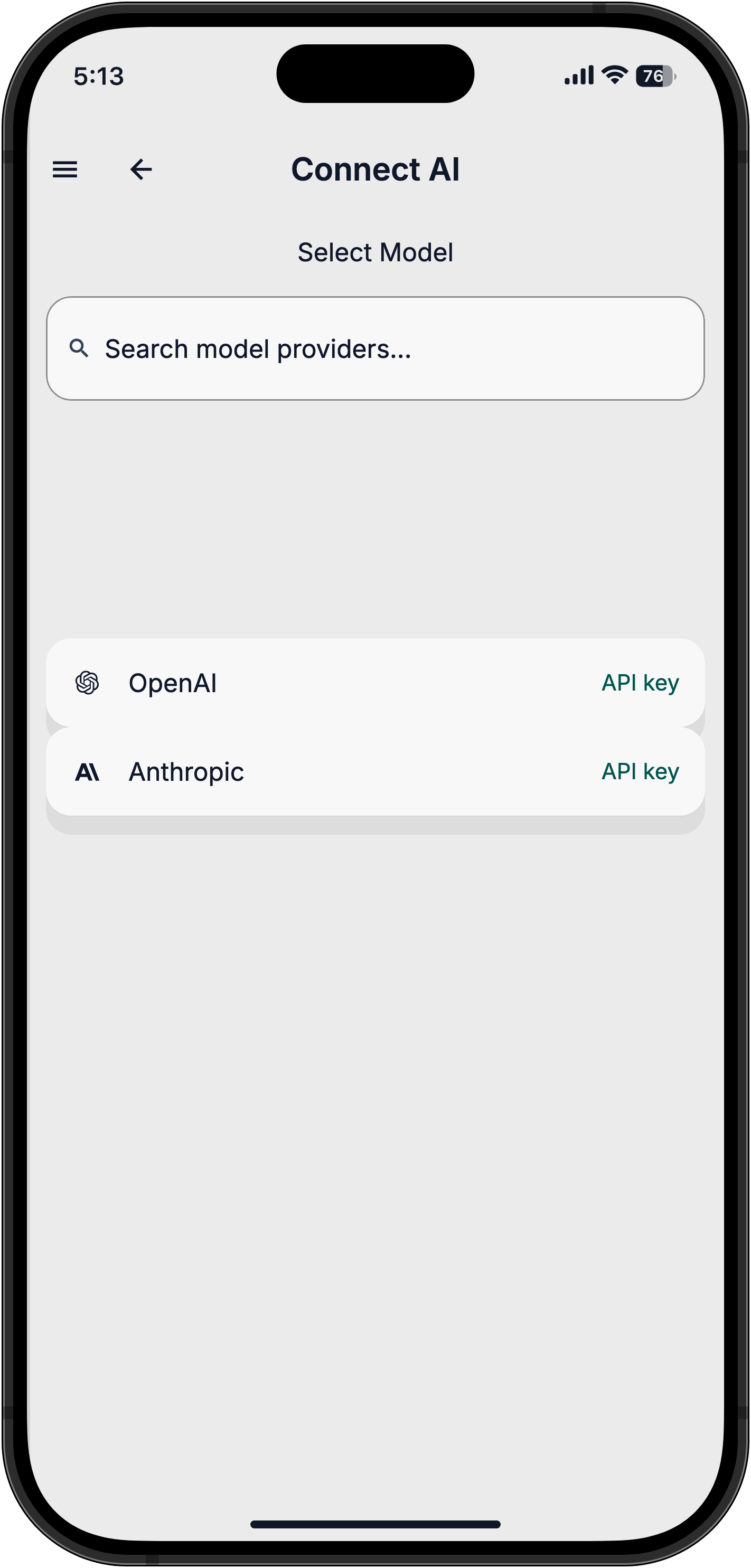
Choose OpenAI, Anthropic or OpenRouter under model providers. Make an API key on your provider's site, paste it in AuraVibes and set a spending limit with your provider.
OpenRouter also has some free models with daily limits. An AI subscription may not include API usage.
03
Connect Notion
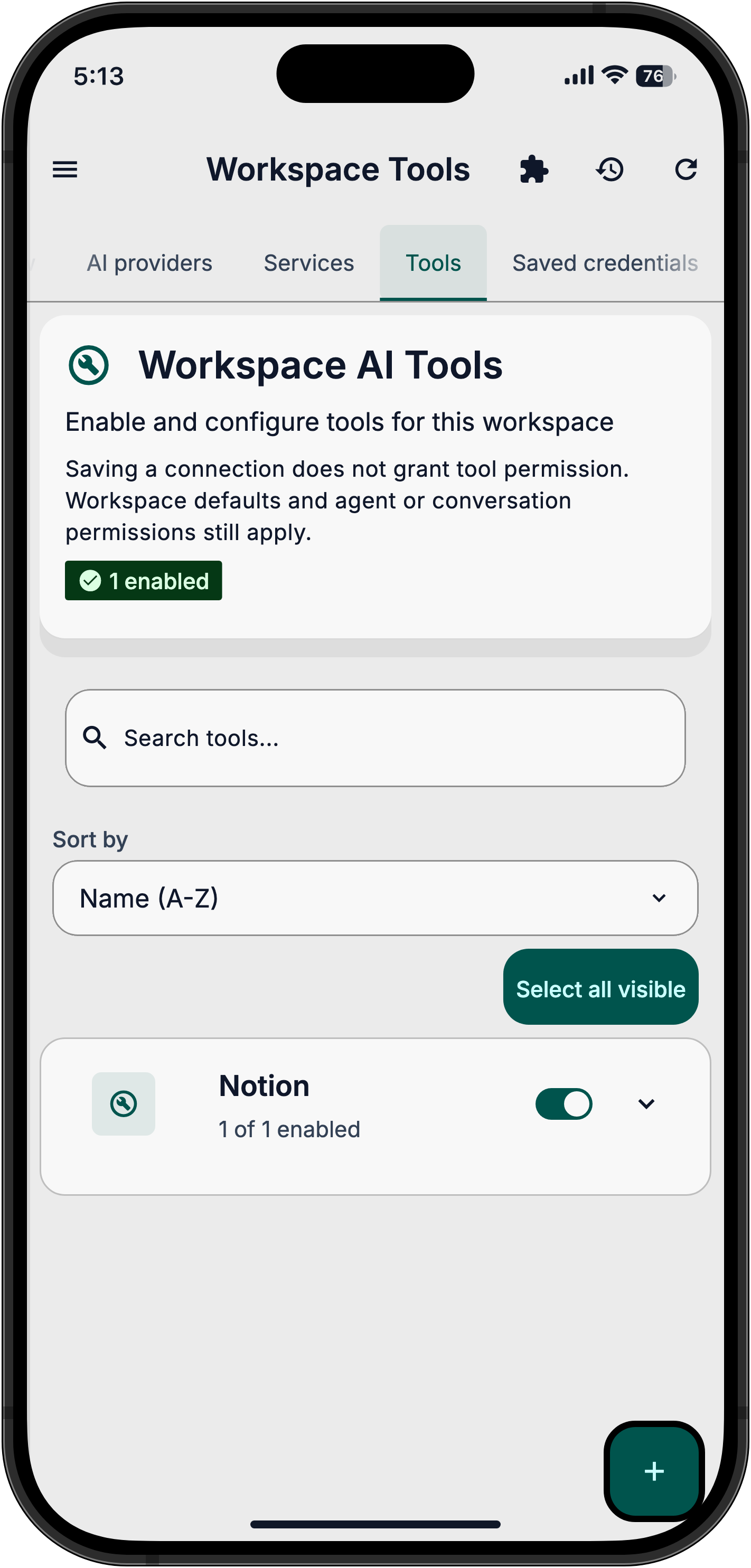
Open Tools, tap +, then Add MCP Server. Set Name to Notion, Server URL to the address below and Authentication to OAuth. Sign in to Notion and choose which pages AuraVibes can access.
https://mcp.notion.com/mcp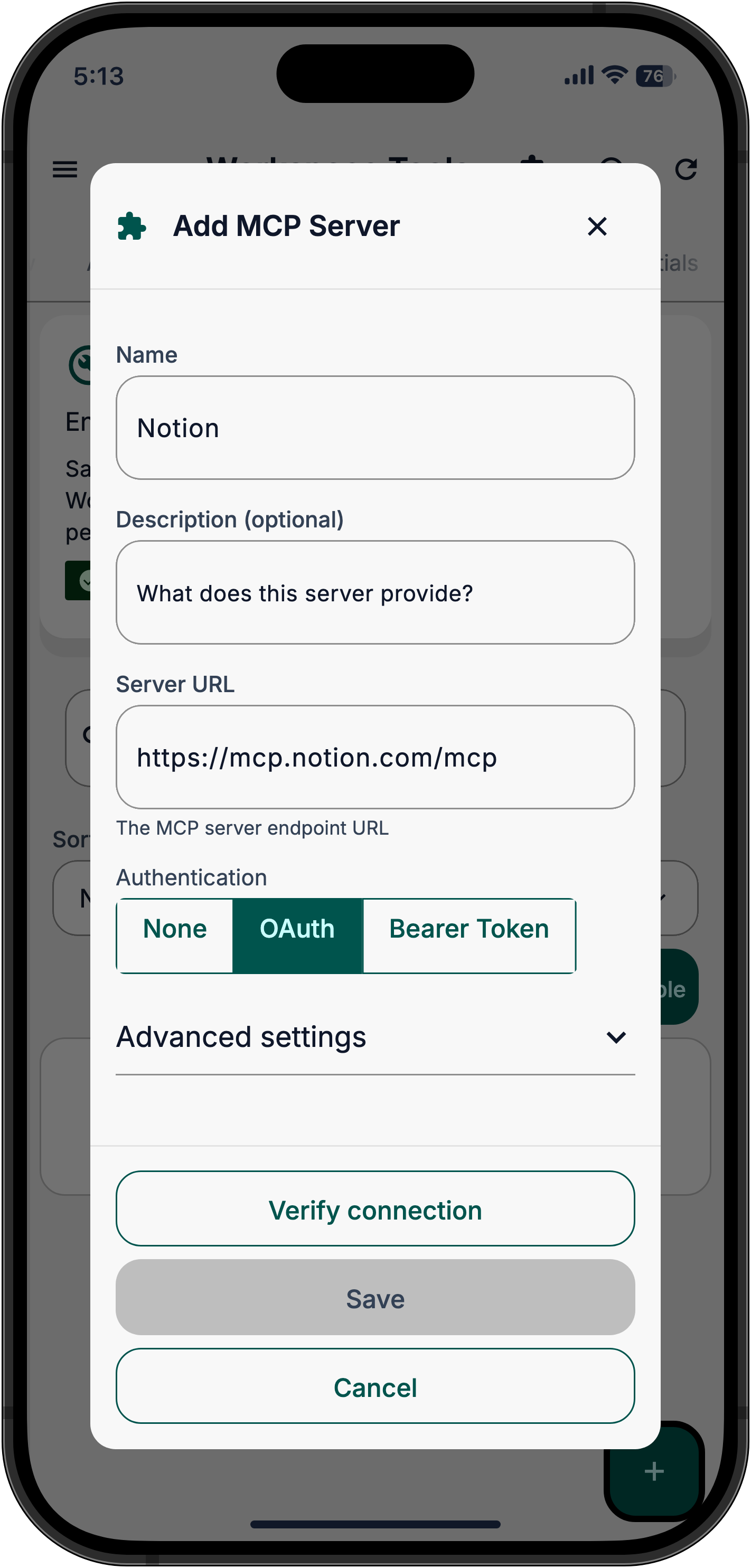
04
Choose your first task
Choose something useful from your notes: make a to-do list, summarize a project, or plan your week. For example: Turn my notes into a to-do list in Notion.
Approve or skip
When a connected tool asks for permission, choose Allow Once, Allow for Conversation, Skip or Stop All. After it runs, check the result in chat and Notion against your request. A proposed action is not a completed task.
Something not working?
Check that your AI provider key is active and your account has credit. In Tools, verify the Notion connection, then check that you gave access to the right pages. Still stuck?